
The PAX A920 Pro card machine is a portable, touchscreen payment terminal designed to make taking payments simple and secure. Whether you’re setting the device up for the first time, connecting it to WiFi, or learning how to process sales and refunds, this guide explains how to use your PAX A920 Pro step by step.
What Comes in the Box?
- PAX A920 Pro terminal
- AC power adapter
- Charging cable
- PAX installation guide
PAX A920 Pro Buttons and Functions
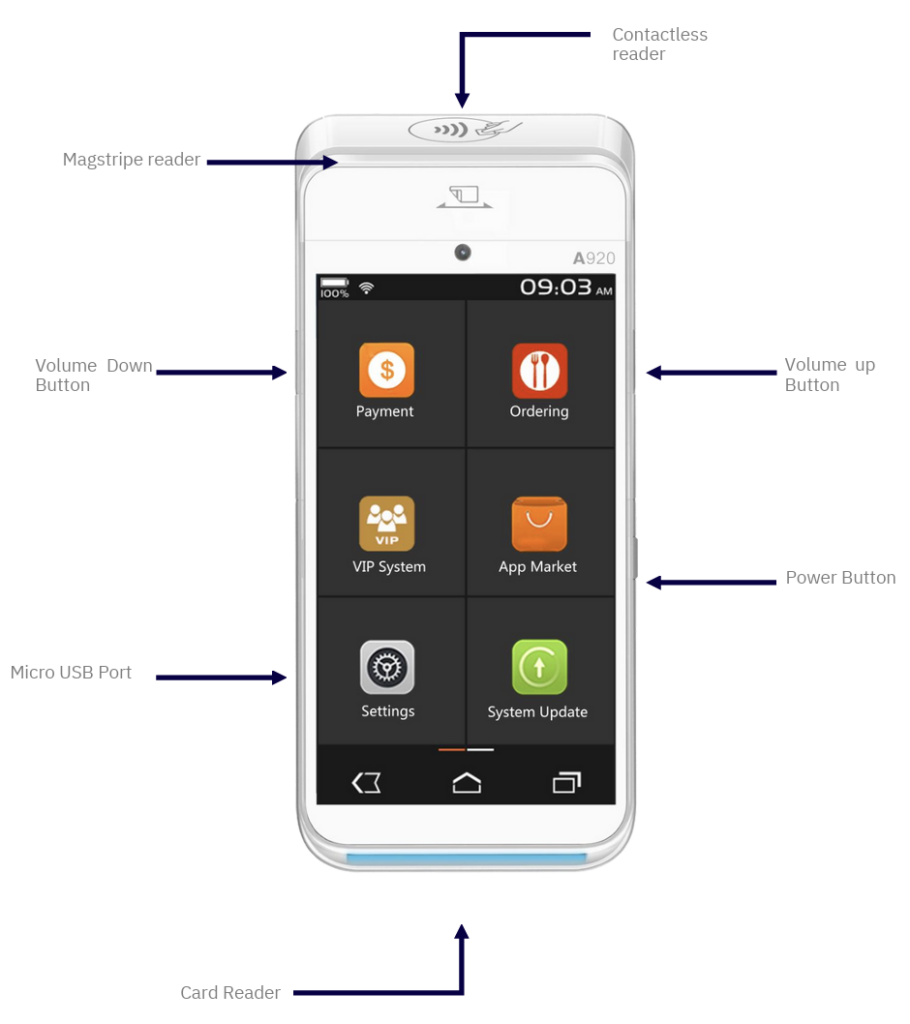
- Contactless reader at the top of the device
- Chip & PIN card reader at the bottom
- Magstripe reader on the side
- Micro USB port for charging
How to Turn the PAX A920 Pro On and Off
To power on the PAX A920 Pro, press and hold the power button for around three seconds until the screen turns on. When the terminal is not in use, pressing the power button once will place it into sleep mode. To fully shut the device down, press and hold the power button until the power menu appears, then select Power Off.
How to Connect a PAX A920 Pro to WiFi
- Tap the three dots in the top-right corner of the screen
- Select WiFi Settings
- Choose your WiFi network from the list
- Complete the connection process
- Use the back arrow to return to the main screen
Logging into the POSitive Payment Application
What You Can Do from the Main and Admin Menus
- Conduct sales
- Process refunds
- Carry out card-not-present transactions
- Reprint and view receipts
- Test the acquiring connection
- Print system information
- Generate Z reports for end-of-day reconciliation
- Generate X reports without resetting totals
- Print transaction history
- Manage user accounts
How to Take a Payment on a PAX A920 Pro
Processing Payments with Gratuity or Cashback
Issuing Refunds on the PAX A920 Pro
Refunds are processed directly from the main menu by selecting Refund. After entering the refund amount, the customer can complete the transaction using their card, or you can select Card Not Present if applicable. When the refund is approved, the terminal prints the receipt and returns to the main menu.
Reprinting and Viewing Receipts
The PAX A920 Pro allows you to reprint receipts or view them on screen through the Reprint Manager. You can reprint the most recent receipt or search for a specific transaction using its receipt number. This is useful if a customer requests a copy of their receipt after a transaction has been completed.
Running End-of-Day and Mid-Shift Reports
How to Change the Paper Roll
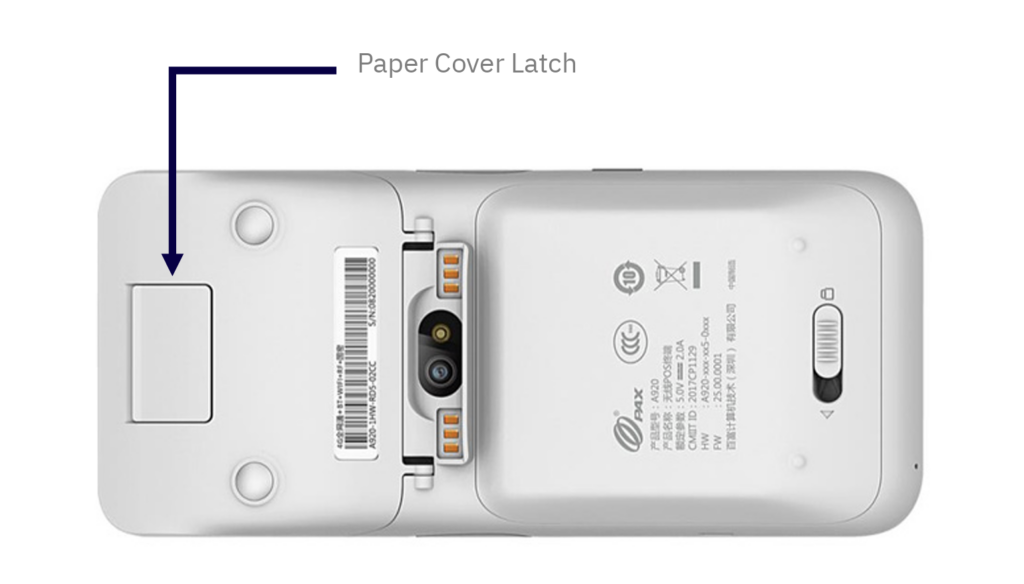
- Turn the device over
- Pull the paper cover latch away from the device
- Remove the old roll
- Insert the new roll with paper feeding out of the top
- Close the lid until it clicks into place
- Tear off excess paper
Common Mistakes to Avoid When Using the PAX A920 Pro
While the PAX A920 Pro is designed to be straightforward to use, some issues can occur if certain steps are missed or features are misunderstood. Being aware of these common mistakes can help ensure transactions run smoothly and reports remain accurate.
Running a Z Report too early
A Z Report is intended to be run at the end of the trading day. Running it before the day has finished will reset all transaction totals back to zero, which can make reconciliation more difficult.
Attempting cashback on contactless payments
Cashback transactions can only be completed when a card is inserted into the chip & PIN reader or swiped using the magstripe reader. Cashback is not available for contactless payments.
Not fully completing the WiFi connection process
After selecting a WiFi network, it’s important to complete the connection process and return to the main screen using the back arrow. Exiting before the connection is complete may prevent transactions from processing.
Forgetting to close the paper cover securely
When changing the receipt paper, the lid must be fully closed until it clicks into place. If the cover is not properly secured, receipts may not print correctly.
Using default login details for longer than necessary
The POSitive payment application uses default login details during initial setup. You are prompted to change the password after first login, which helps keep access to the terminal controlled.
Expecting contactless payments for all transaction types
Some transaction types, such as cashback, require the customer to insert or swipe their card. If the terminal prompts for a specific method, this should be followed to complete the transaction.